
Creating a Datasource in DKubeX
This tutorial guides you through the process of creating (or adding, to be more clear) a datasource in DKubeX. A datasource is essential for storing and managing datasets that will be used for training and evaluating machine learning models.
On the DKubeX UI, navigate to the Datasources tab from the left sidebar. The datasources page will open, displaying a list of existing connected datasources (if any).
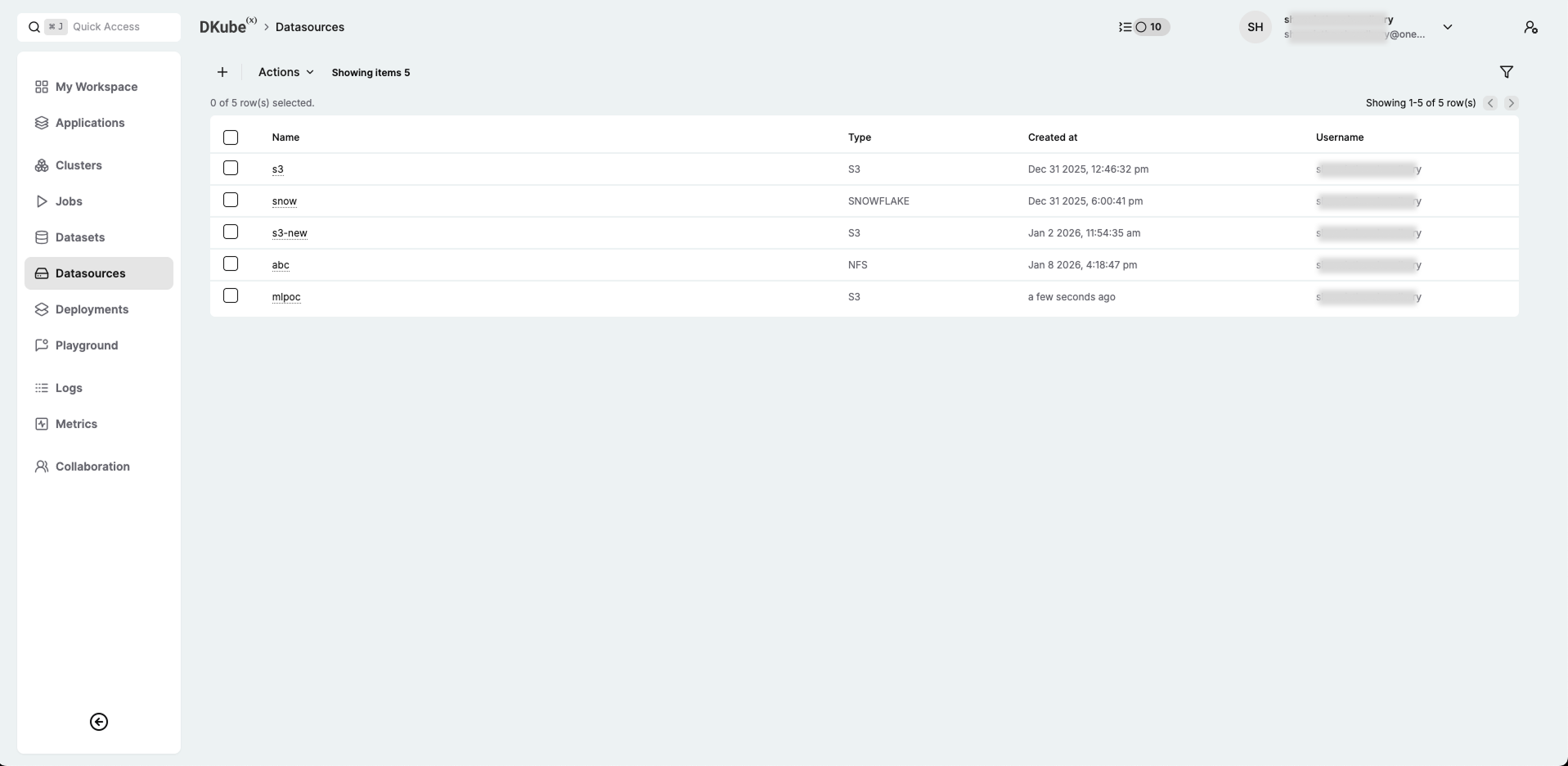
DKubeX Datasources page
Click on the + button, which is the datasource create button, located in the top-left corner of the datasources page. This will open the Datasource Create page.
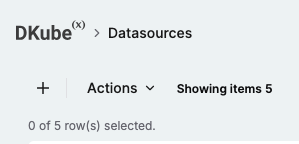
DKubeX Datasource Create Button
In the Datasource Create page, provide a unique name for the datasource to be added, and select the source type from the Source dropdown provided. In DKubeX, you can add datasources from the following source types:
NFS
S3 (AWS or AWS-like)
Snowflake
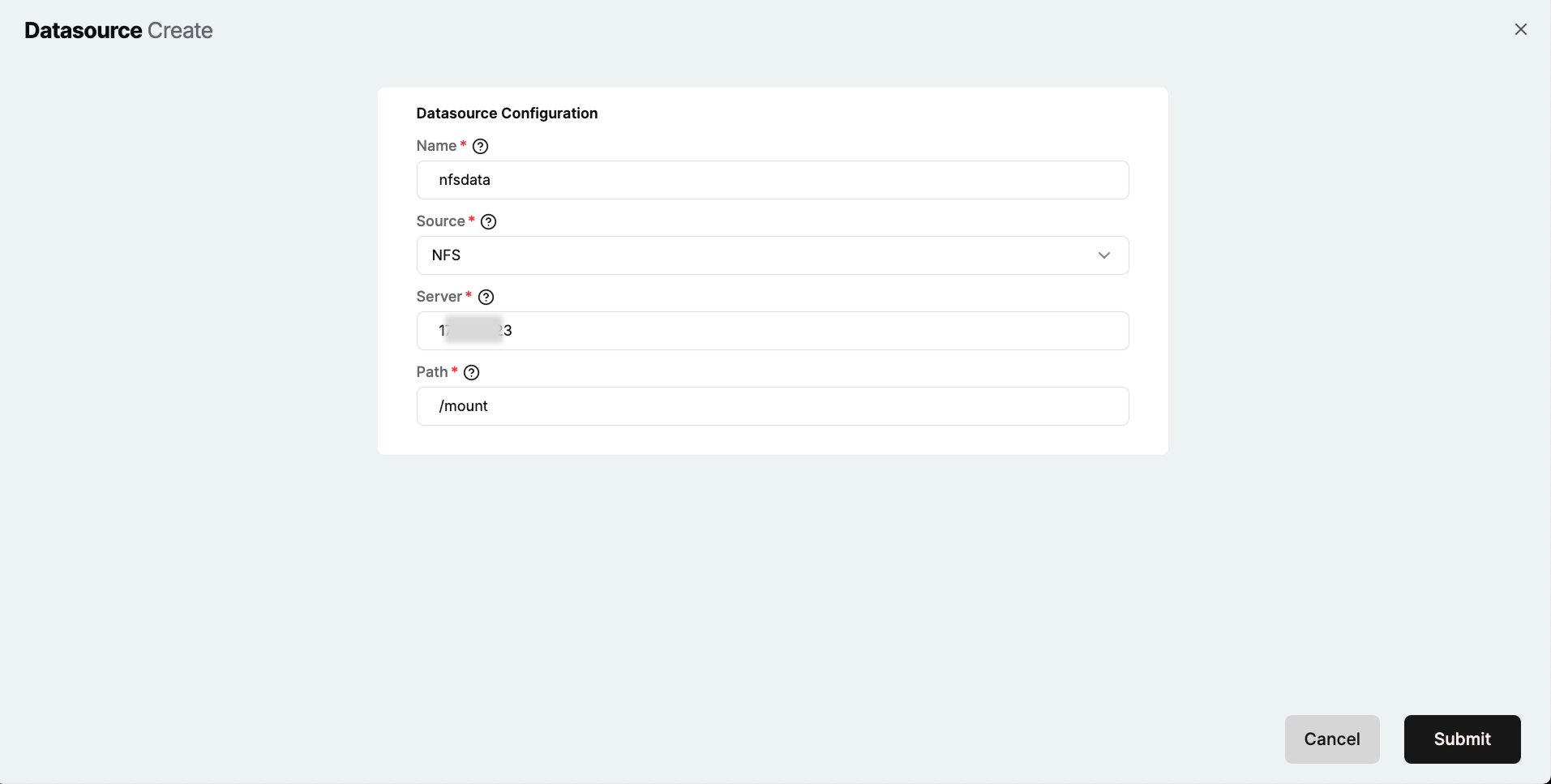
DKubeX NFS Datasource Create page
In case of NFS datasource, provide the following details:
Field |
Description |
|---|---|
|
The NFS server address. |
|
The path on the NFS server where the data is stored. |
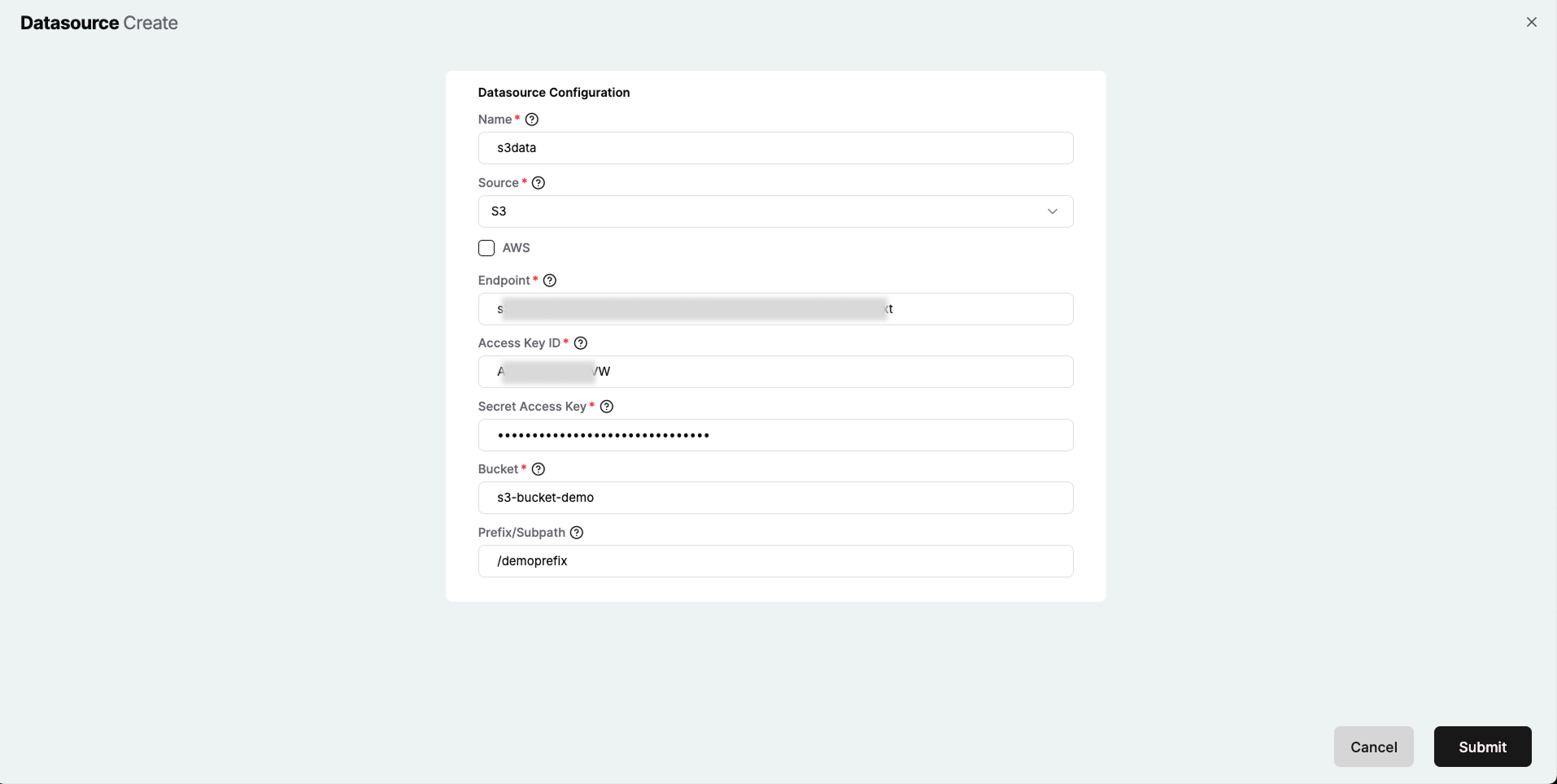
DKubeX S3 Datasource Create page
In case of S3 datasource, first select the AWS checkbox if it is a S3 bucket from AWS, or leave it unchecked if it is from an AWS-like provider like MinIO. Then provide the following details:
Field |
Description |
|---|---|
|
The S3 endpoint URL. (Only for AWS-like providers) |
|
The access key for the S3 bucket. |
|
The secret access key for the S3 bucket. |
|
The name of the S3 bucket where the data is stored. |
|
The prefix or subpath within the S3 bucket where the data is stored. (Optional) |
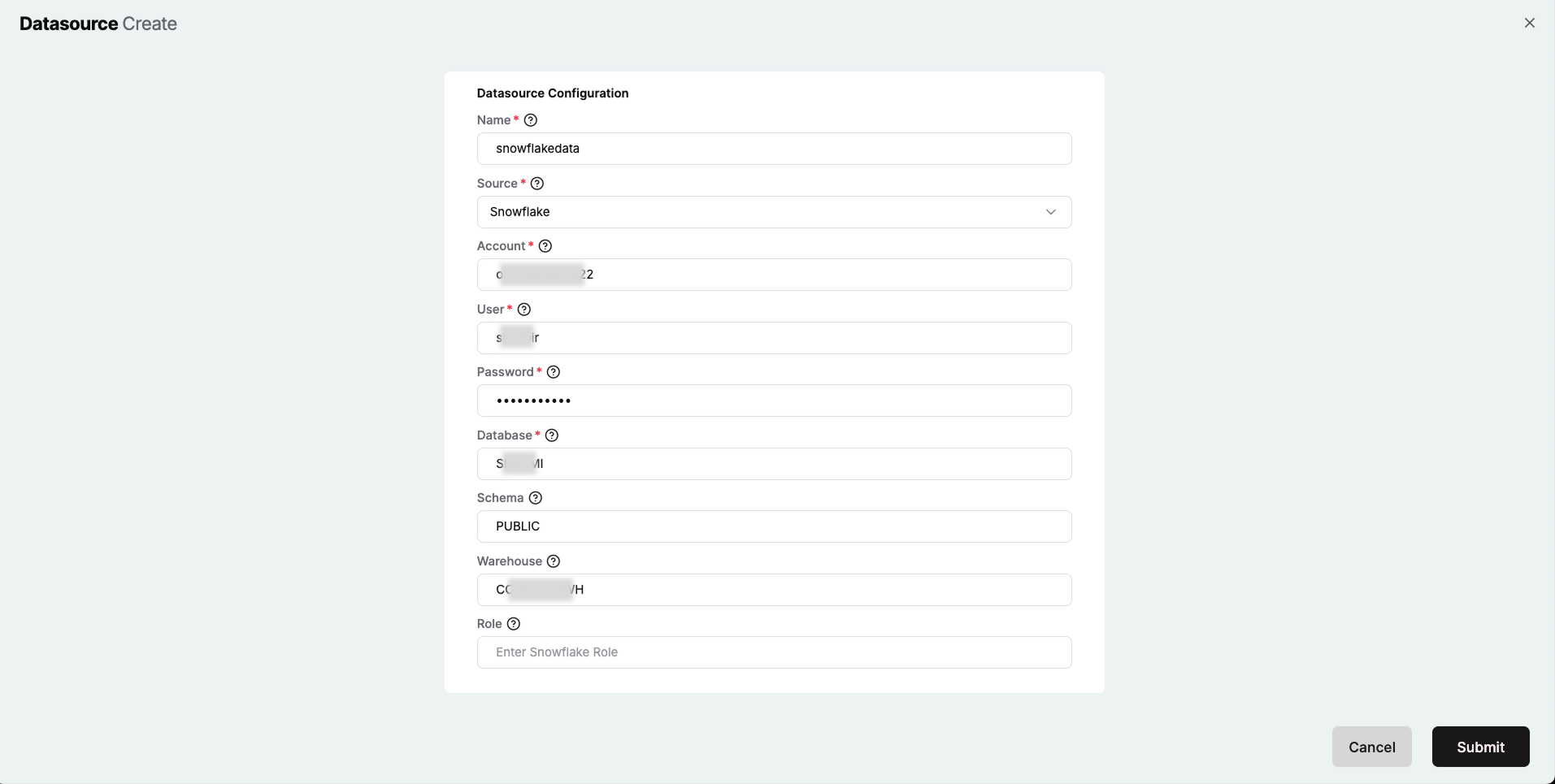
DKubeX Snowflake Datasource Create page
In case of Snowflake datasource, provide the following details:
Field |
Description |
|---|---|
|
The Snowflake account identifier. |
|
The username for the Snowflake account. |
|
The password for the Snowflake account. |
|
The name of the Snowflake database. |
|
The schema within the Snowflake database. (Optional) |
|
The Snowflake warehouse to be used. (Optional) |
|
The role to be used for accessing the Snowflake database. (Optional) |
After providing all the necessary details for the selected datasource type, click on the Create button located at the bottom-right corner of the Datasource Create page. This will add the datasource to DKubeX and allow you to use this in your MLOps workflows.